![SciNote_logo_color_2023.png]](https://knowledgebase.scinote.net/hs-fs/hubfs/SciNote_logo_color_2023.png?height=40&name=SciNote_logo_color_2023.png)
What you can lock
You can lock the following elements within a protocol template:
- Individual steps
- Content blocks within a step, including text, tables, checklists, forms, and attachments
- The protocol description
Note: Attachments can only be locked as a whole block. You cannot lock an individual file within an Attachments block.
When a step or content block is locked, it becomes read-only for anyone working from that protocol template.
You can also lock the content of a result. For instructions, see How to lock results.
How to lock a step
- Open the protocol template.
- In the Protocol steps section, click the Manage steps icon
- Click the lock icon next to each step you want to lock. Click the icon again to unlock a step.
- Close the window.
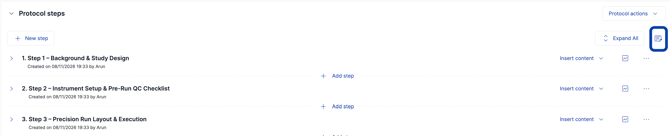
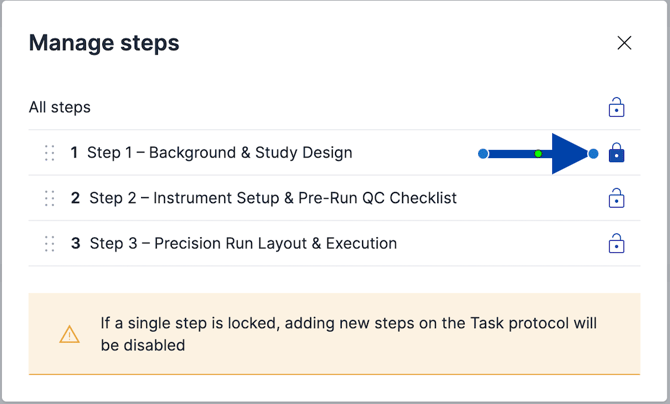
Locked steps display a Locked label next to the step title.
How to lock content within a step
- Open the step that contains the content you want to lock.
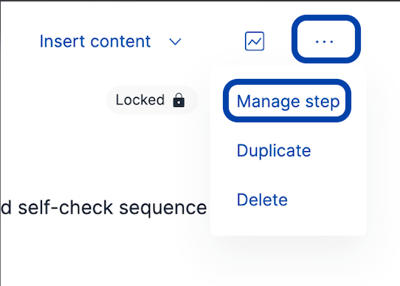
- Click the ... (more options) menu for that step.
- Select Manage step.
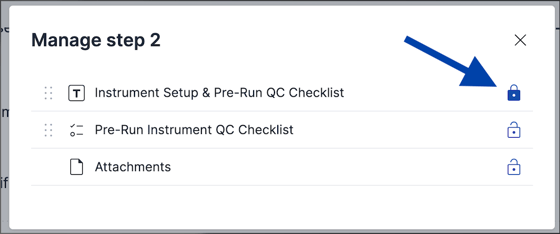
- Click the lock icon next to each content block (text, table, checklist, form, or attachments) you want to lock. Click the icon again to unlock it.
- Close the window.
How to lock the protocol description
- Open the protocol template.
- In the Protocol description section, click the lock icon.

For information on how to lock content in the results section: How to lock results
What happens when a protocol template with locked content is loaded onto a task
When a protocol template that contains at least one locked step is loaded onto a task:
- Locked steps and locked content blocks become read-only. You cannot rename a locked step, edit its content, or change its attachments.
- You cannot add, duplicate, or archive steps on that task — this applies to all steps, not only the locked ones.
- You cannot rearrange steps.
- Several protocol actions are unavailable, including loading another template, creating a protocol with AI, adding protocol steps, reverting the protocol, unlinking the protocol, archiving all steps, and updating the protocol version.
- You can still add content to an unlocked step, even if that step contains locked content blocks.
- You can still link results to a locked step.
If a locked protocol template is loaded onto an empty task, or onto a task that already has an unlocked protocol, the locked status of its steps and content is not carried over.
Warning: Once a protocol template has at least one locked step, these restrictions apply broadly to the whole protocol on that task — including steps and content that are not themselves locked.
Tips
- Lock steps and content only after they have been reviewed and finalized. This helps you avoid unlocking and re-locking content while a protocol is still being drafted.
- Because locking at least one step restricts several protocol-level actions on any task that loads the template (such as adding or rearranging steps), consider finalizing the full structure of your protocol template before locking any of its steps.
Permissions
Locking and unlocking steps and content requires an Organization Administrator role.
Availability
This feature is available on the Platinum plan.
If you have any questions, contact us at support@scinote.net. For more information about the Premium plans, please request a quote.