![SciNote_logo_color_2023.png]](https://knowledgebase.scinote.net/hs-fs/hubfs/SciNote_logo_color_2023.png?height=40&name=SciNote_logo_color_2023.png)
File IDs and file titles make it easier to identify, reference and trace the exact file you need. They apply to every file attached to a protocol step, a result or an inventory item.
- File ID – a unique, automatically assigned identifier with the prefix FL (for example, FL62824). It cannot be edited.
- File title – an optional, descriptive name you choose (for example, "Sample pictures"). The original file name stays unchanged.
File titles and File IDs are available in SciNote Premium from release 1.51.1 (November 25, 2026).
How to add or change a file title
You add or change a title in the new File metadata panel of the full-screen file preview.
- Open the task (or inventory item) and go to the step or result that holds the file.
- Click the file name to open the full-screen preview.
- In the top-right corner of the preview, click File metadata.
- Enter a descriptive name in the File title field. The read-only File ID is shown below it.
- Close the preview. The title now appears in front of the file name in the file list.
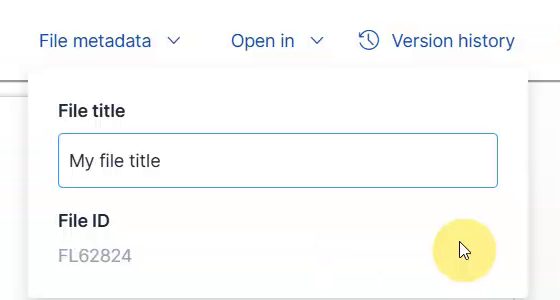
To change a title, repeat the steps and edit the text in the File title field.
Where file titles and File IDs are shown
|
Location |
What you see |
|---|---|
|
File list view (steps, results, inventory items) |
The title in front of the file name, and the File ID next to the modified date and size |
|
Thumbnail view |
The title and File ID with each thumbnail |
|
Full-screen preview |
Both, in the File metadata panel |
|
Smart annotations |
The title (or file name) followed by the File ID, e.g. Sample pictures_FL62823 |
|
Reports |
The title is used in attachment references |
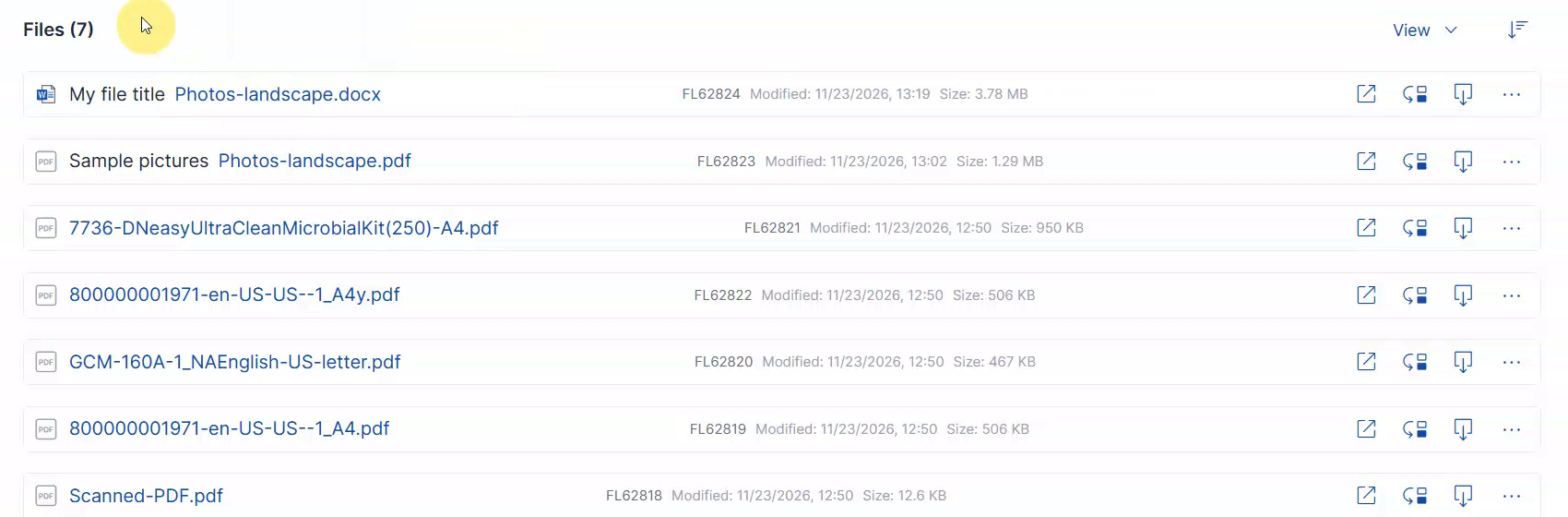
Files without a title are shown by their file name, as before.
File titles in smart annotations
When a file has a title, the title takes precedence over the attachment (file) name when you annotate it. The title is what you see in the smart annotation search list, and it is what appears in the saved text.
For example, a file named Photos-landscape.docx with the title My file title:
- appears as My file title when you type # and open Task files, and
- is displayed as My file title_FL62824 once the annotation is saved.
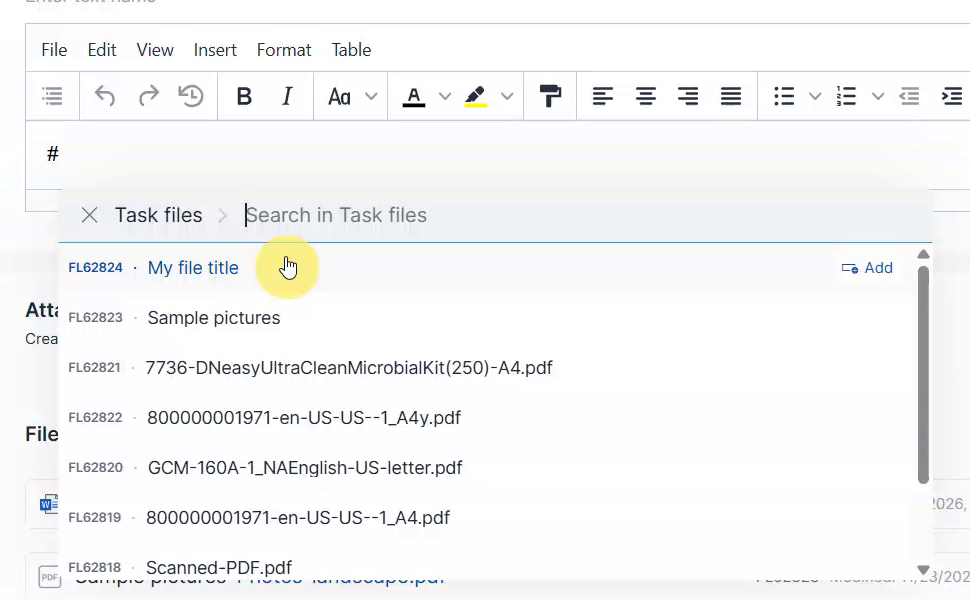

Files without a title are annotated with their file name and File ID, e.g. 7736-DNeasyUltraCleanMicrobialKit(250)-A4.pdf_FL62821. Clicking the annotation opens the file in full-screen preview.
Tip: Search for a file by its title when you annotate it. If you can't find it by its original file name, check whether someone has given it a title.
Read more in What are Smart Annotations in SciNote?
Traceability
Every change to a file title is recorded in the task's Activities and in the audit trail, so you can always see who renamed a file and when. The original file name and the File ID never change.
If you have any additional questions, please, do not hesitate to contact us at support@scinote.net. For more information about the Premium plans, please request a quote.