![SciNote_logo_color_2023.png]](https://knowledgebase.scinote.net/hs-fs/hubfs/SciNote_logo_color_2023.png?height=40&name=SciNote_logo_color_2023.png)
What is Equipment Scheduling in SciNote?
Equipment Scheduling in SciNote lets teams book, track, and manage laboratory equipment directly from a shared calendar. It supports Usage, Calibration, Maintenance, and Other event types.
Equipment Scheduling is available on Professional and Platinum plans. Teams on other plans can try it with a free trial. Visit the SciNote pricing page or contact sales to get started.
1. Navigating the Equipment Scheduling Calendar
The Equipment Scheduling calendar is accessible from the main menu under the Equipment Scheduling icon.
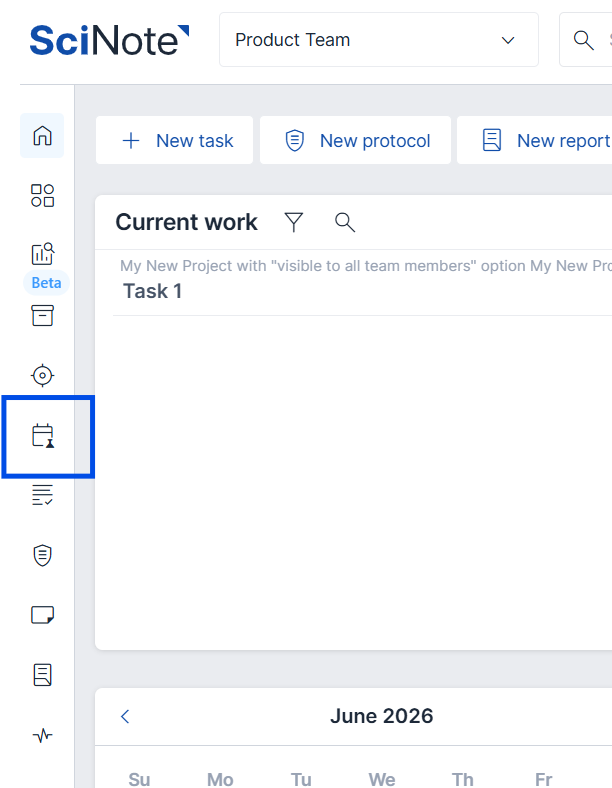
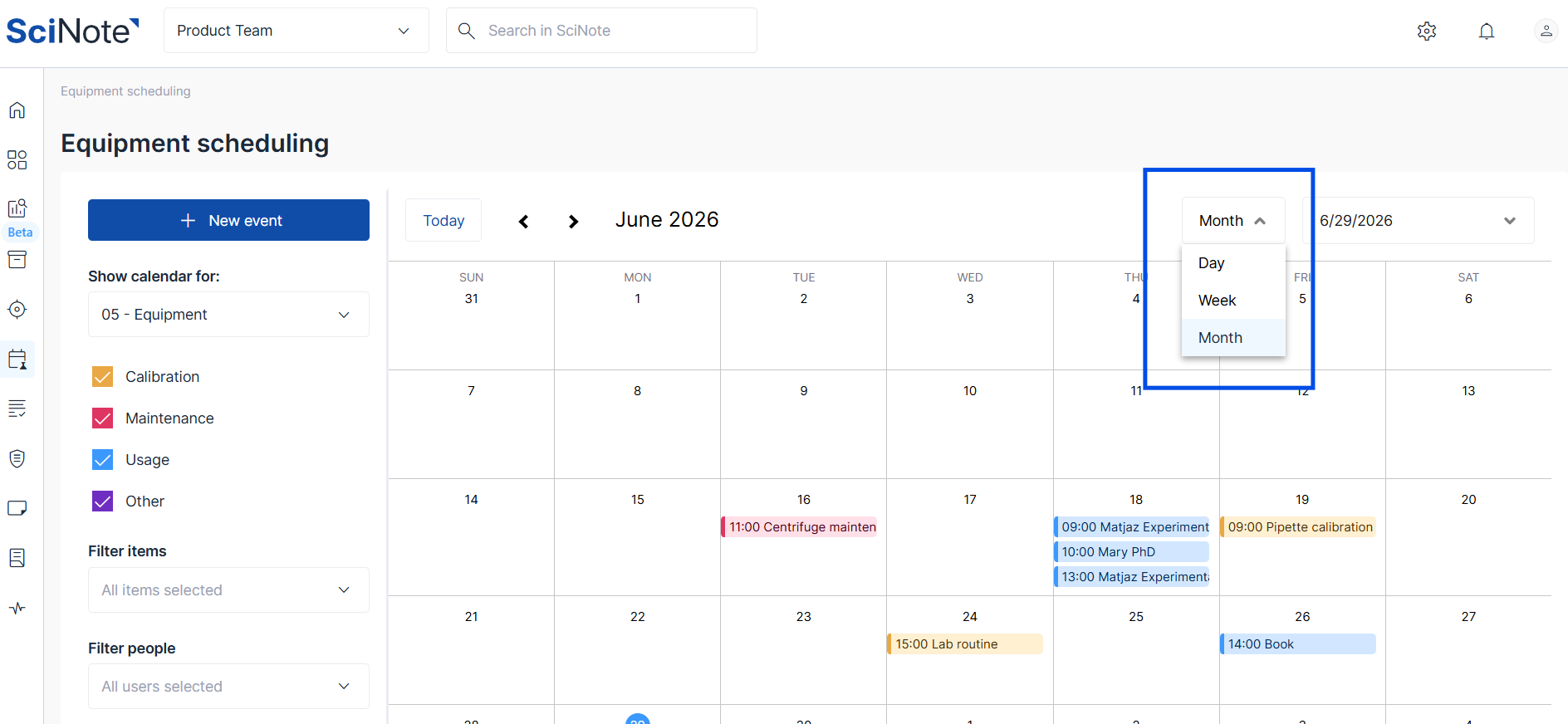
It provides three views to suit how you plan your work:
- Daily view — see all bookings for a single day
- Weekly view — get an overview of bookings across the current week
- Monthly view — plan ahead with a high-level view of the full month
Use the view toggles at the top of the calendar to switch between these views.
2. Creating a Booking Event
Each booking event on the calendar captures the following information:
- Title — a short descriptive name for the booking
- Event type — one of: Usage, Calibration, Maintenance, or Other
- Assigned team members — the people responsible for or involved in the booking
- Date and time range — the precise start and end time of the booking
You can create a booking event in SciNote in three ways:
Note: Before creating a booking, ensure the equipment item already exists in your Inventory.
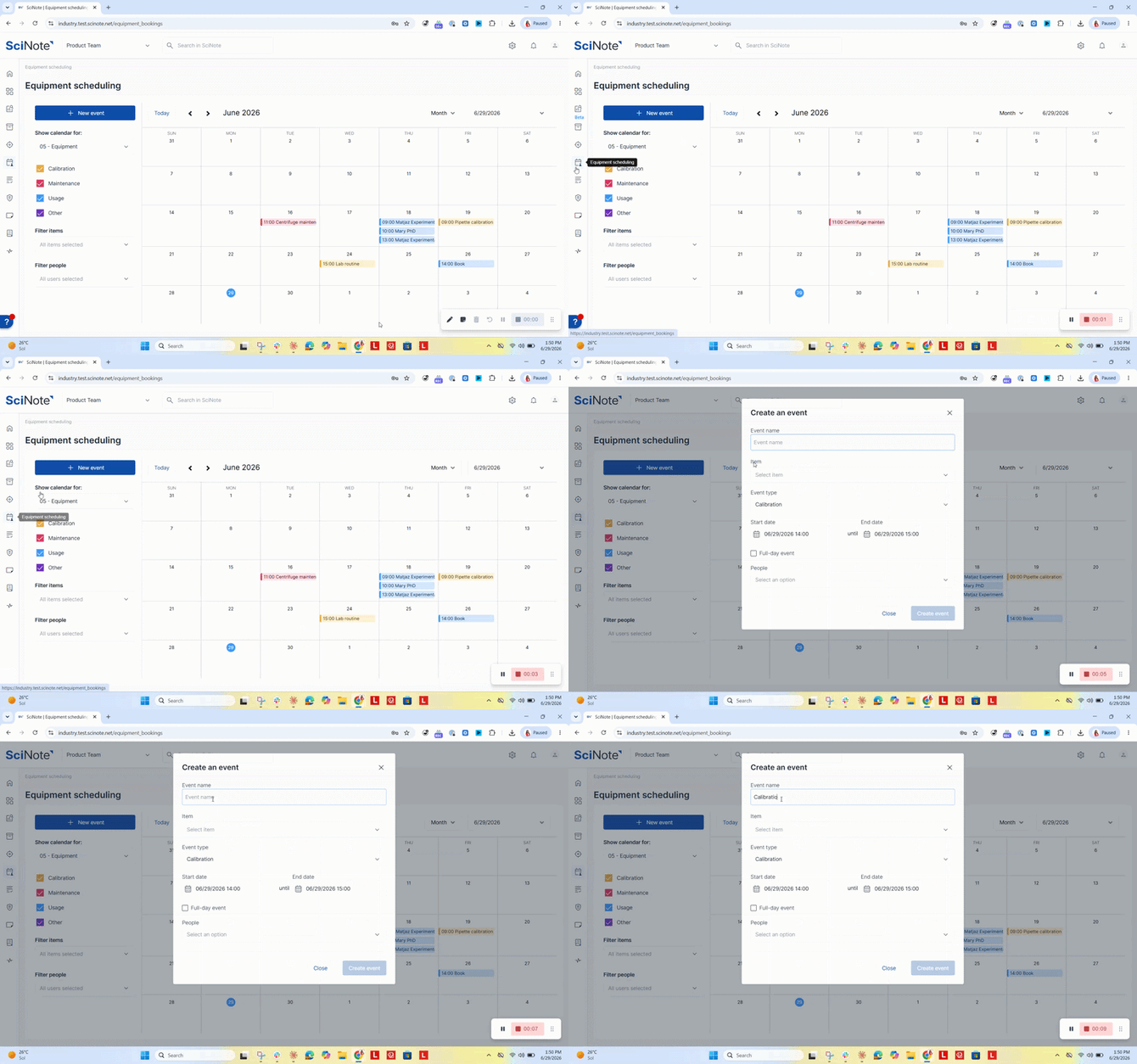
2a. From the Equipment Scheduling calendar
- Navigate to the Equipment section in the main menu.
- Click on the +New event blue button on the calendar menu.
- Fill in the booking details (title, event type, team members, date/time range).
- Click Create Event to confirm the booking.
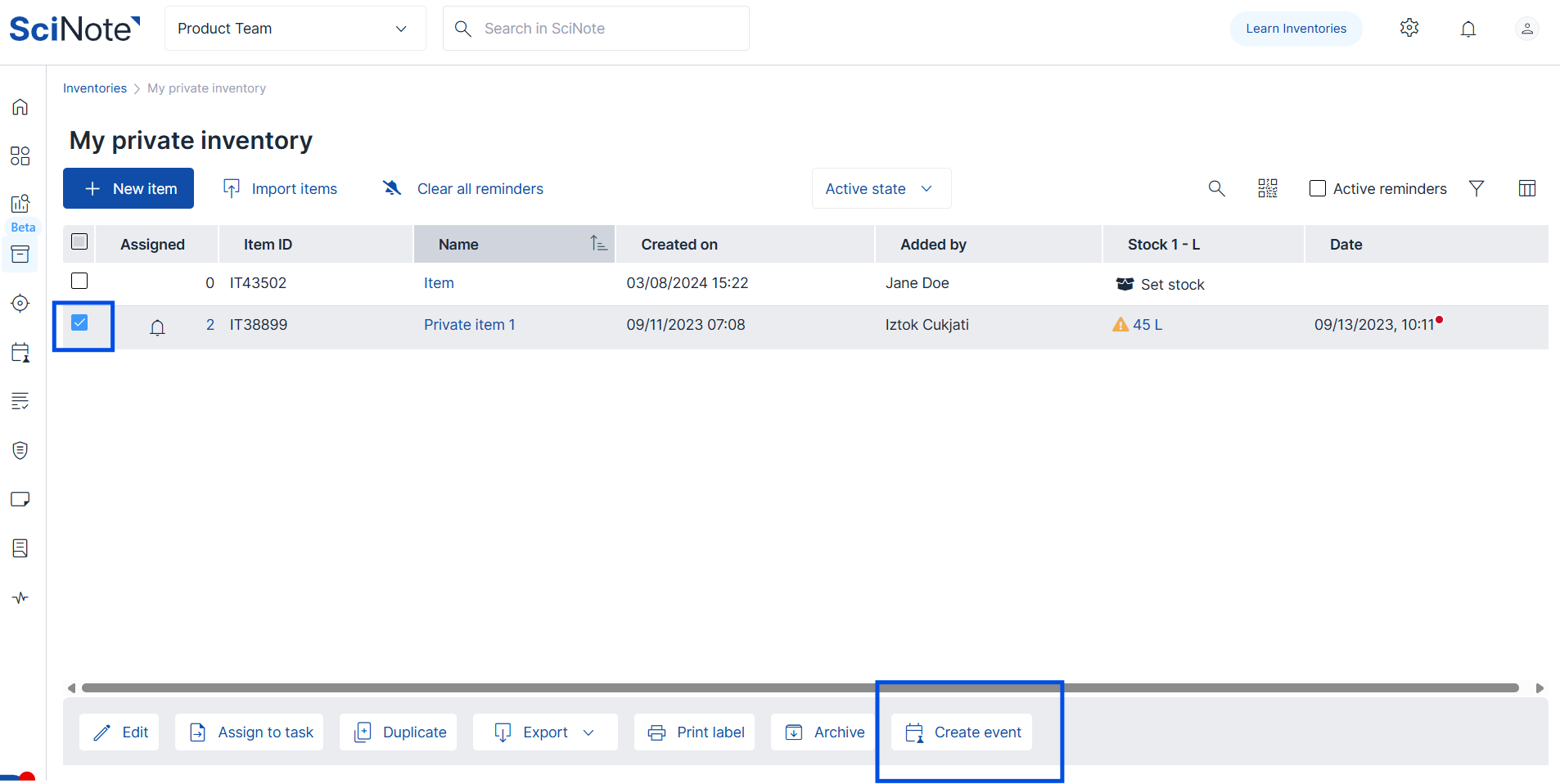
2b. From an inventory item's action toolbar
- Navigate to the Inventory and locate the item you wish to book.
- Select it and the toolbar will appear at the bottom.
- Select the Create Event option.
- Fill in the booking details and click Create Event.
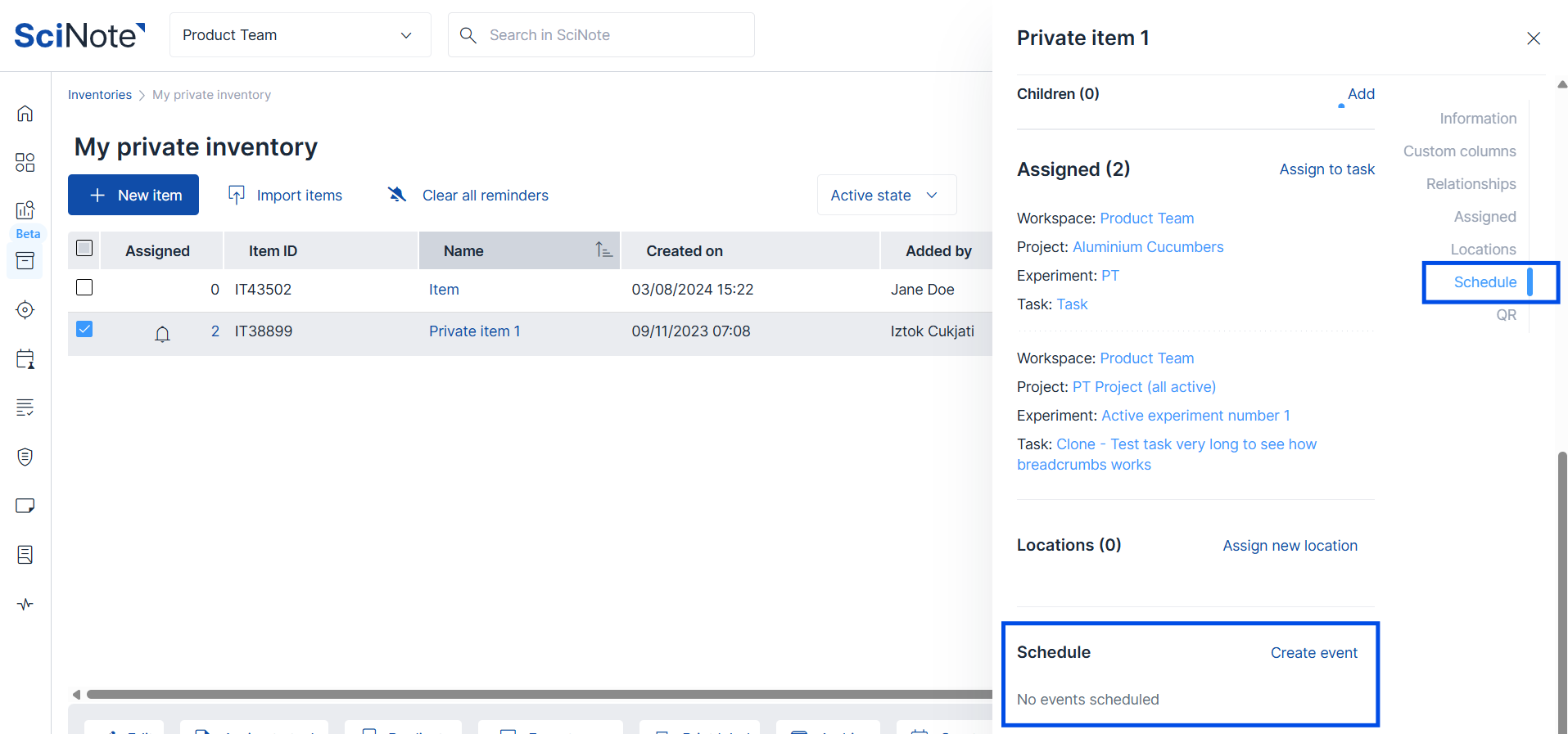
2c. From the Schedule section on an item card
- Open an inventory item's card (accessible from the inventory list, from a task where the item is assigned, or via a # hashtag link in any rich text field).
- Scroll to the Schedule section on the item card.
- Click Create Event and fill in the required details.
- Click Create Event.
Equipment Scheduling follows the same access and permission settings as the underlying inventory.
To learn more about inventory permissions, see How to Manage Inventory Access and Permissions in SciNote.
If you have any additional questions, contact us at support@scinote.net. For more information about the Premium plans, please request a quote.