![SciNote_logo_color_2023.png]](https://knowledgebase.scinote.net/hs-fs/hubfs/SciNote_logo_color_2023.png?height=40&name=SciNote_logo_color_2023.png)
Where item cards appear
The item card is available wherever an inventory item's name is shown as a link (#) or assigned to a task, including:
- In a Task — for every item that is assigned to the task, or referenced (#) in a step, result or any text field using a smart annotation (#). Click the item's name and its card opens on the right.
- In the Inventory — click an item's name to open the same card.
- In Storage locations — open an item's card from the box view.
- Anywhere when linked in a text field (#).
Because the card is the same everywhere, a scientist can update an item's details in the middle of running a protocol — for example, correct a storage condition, log a new lot, or check where a reagent is stored — without breaking their flow.
How to open and edit an item card- Click the name of any inventory item.
- The card opens as a panel on the right-hand side of the screen.
- Click the editable field, make your change, and click away. Changes are saved automatically.
Editing from the card requires the same permissions as editing in the inventory (Team Owner or User with edit rights on that inventory). For items in a shared inventory, edit access must be granted by the owning team.
Note: When a task is In review or Done, assigned items are shown as a locked snapshot rather than the live item, so they cannot be edited from that task.
The item card tabs
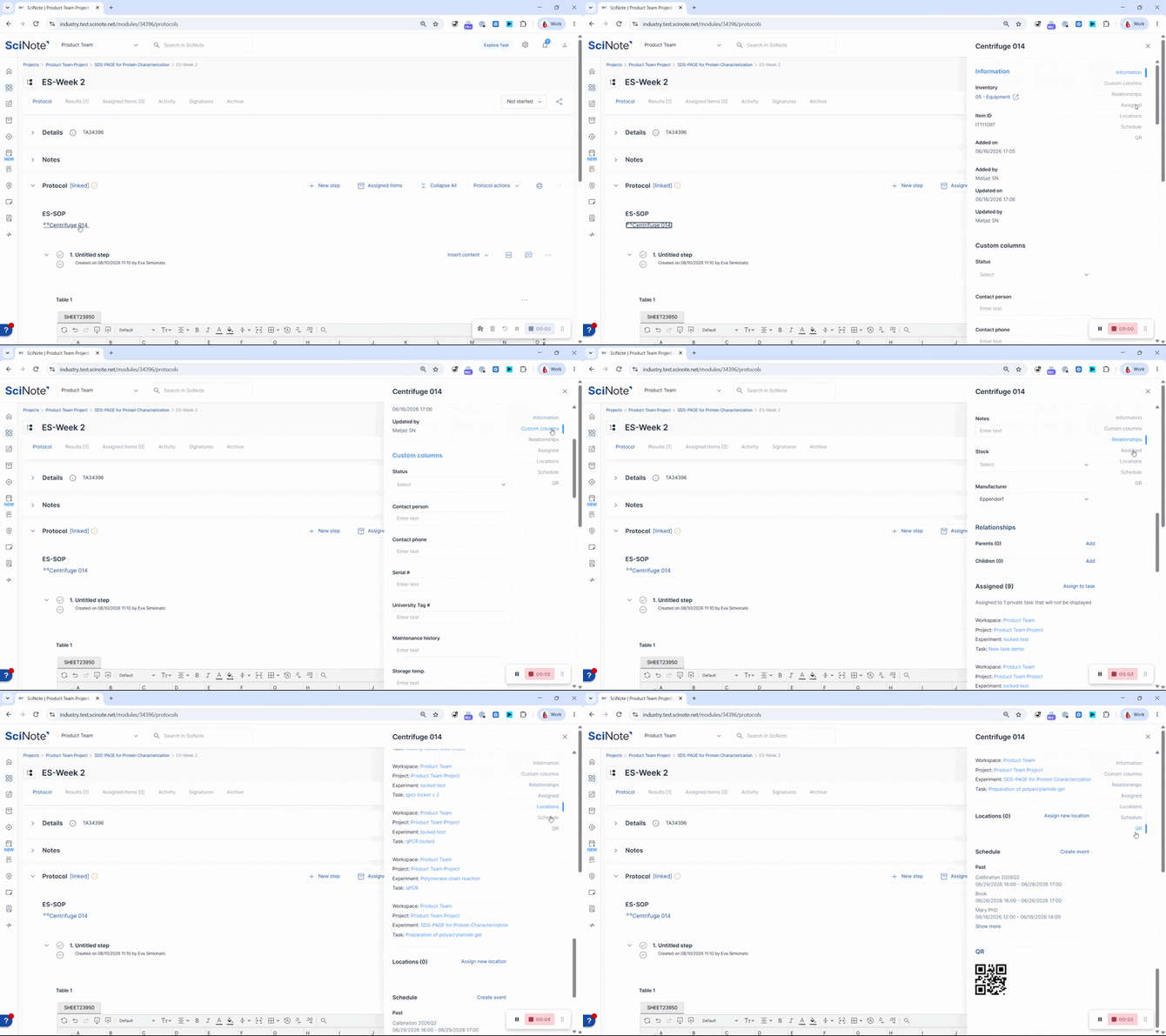
The tabs down the side of the card are shortcuts to each part of the item's record. Selecting a tab jumps to that section:
Information — the item's core details: the inventory it belongs to, its Item ID, and the system-recorded history (Added on / Added by, Updated on / Updated by). These history fields are maintained by SciNote and are read-only.
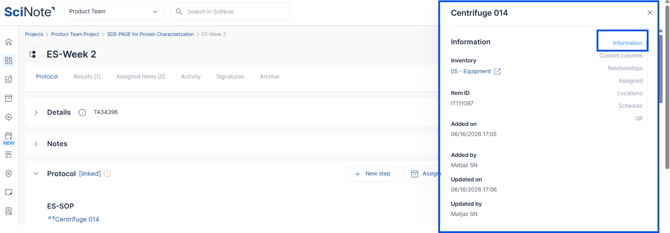
Custom columns — all the custom fields defined for that inventory (text, number, date, dropdown, checklist, file, and so on). This is where most day-to-day edits happen — for example updating a storage temperature, concentration, or status — and each field is editable inline.
Relationships — the item's parent/child links to other items such as a parent reagent with its child lots, or a pooled item linked to its source items.
Assigned — where the item is used. From here you can assign the item to a task.
Locations — the item's storage location. Assign the item to a box and position, or move it, directly from the card.
Schedule — schedule events for the item, such as calibration or maintenance for a piece of equipment, so that upcoming activities are tracked against the item.
QR — the item's QR code, used for printing a label and for scanning the item back into SciNote.
Why item cards matter
Item cards turn the inventory from a place you visit into information you can reach and edit from wherever you are working. That means fewer interruptions during lab work, fewer transcription errors from switching screens, and a single, always-current record for each item — whether you open it from a task, the inventory, or a storage box.
Related articles:
- How to Edit Inventory Items
- How do I assign inventory items to the task(s)?
- How to Add Items to an Inventory
- How to Manage Inventory Access and Permissions in SciNote